Report templates
Each of our connectors comes with a report template, for creating dashboards from Ahrefs data sources in minutes. These templates come with multiple pages of useful charts that showcase the key features of the connector.
We currently offer one template for each tool.
- Site Audit report template
- Site Explorer report template
- Rank Tracker report template
- Brand Radar report template (soon!)
Data source configuration
A report instance is created from a template by providing an underlying data source for it. The report creator must have view access to this data source.
Take the following steps to ensure your data source configuration is compatible with all of the charts in our template.
1. Allow modification of all parameters in reports
The parameters in our data source configuration have an option to allow modification in reports. For full compatibility with the template, this option should be enabled for all parameters.

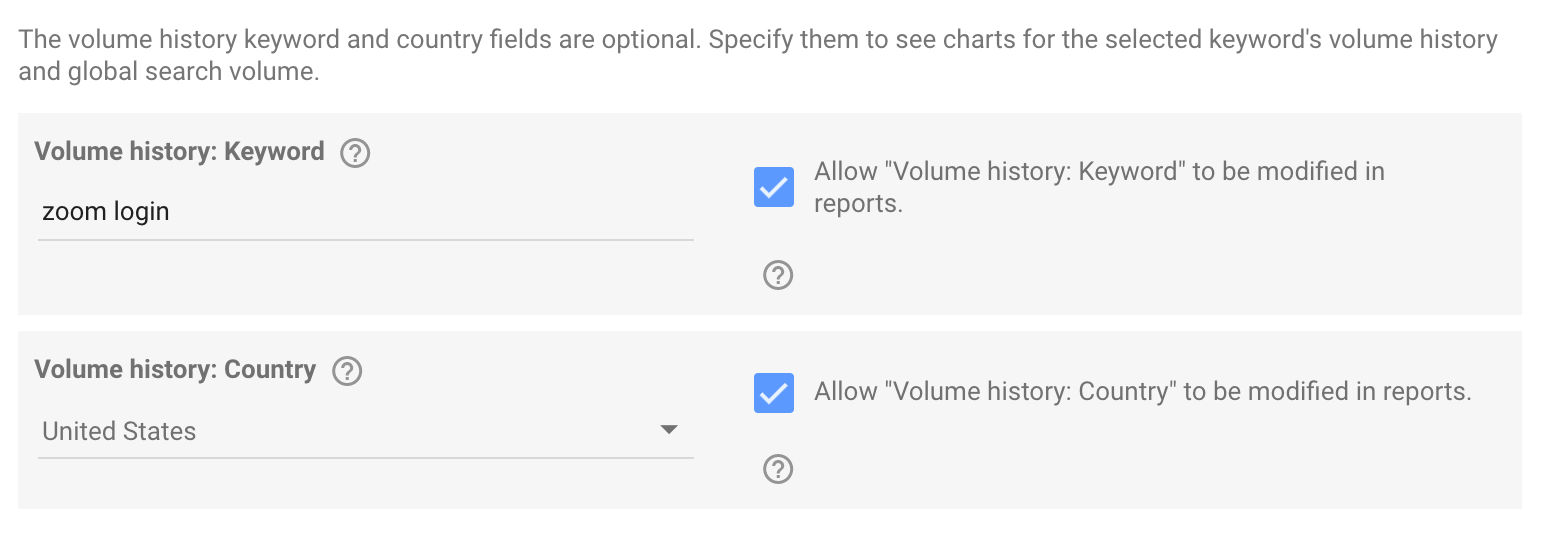
2. (Rank Tracker only) Provide values for any parameters that are required for use with the template
In the Rank Tracker connector, some parameters are marked as optional since they are only needed for showing certain charts. However, for compatibility with the Keywords Explorer portion of the template, these are still required.
3. (Recommended) Use report template for new reports by default
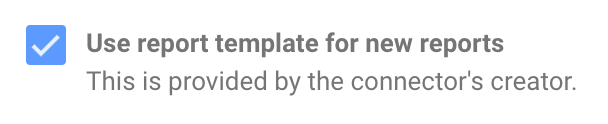
Finally, at the bottom of the configuration screen, there is an option to use the template associated with the connector for creating new reports. This setting is not required, but can be enabled to always create reports from this template by default.
Creating a report instance
The steps for creating a report instance depend on whether the “Use report template for new reports” option was selected in the configuration.
For reports created using either approach, if errors such as “Unknown data source” and “System error” are encountered on the initial report load, please try refreshing the page.
info
If you create a report using the Site Audit template, you may need to change the report's default date range to match your selected project's crawl settings. For more information, see Date range usage in Site Audit reports.
If “Use report template for new reports” was selected
Navigate to the data source to be used as the underlying one for the report, and click the “Create Report” button at the top right.

A new report instance will be created from the template associated with the connector.

If “Use report template for new reports” was not selected
Visit one of the our report templates. Click the "Use template" button at the top right corner.

Looker Studio will present a menu where the underlying data source for the new report should be selected. Ensure the selected new data source was created from the same connector as the one the report template is intended for.
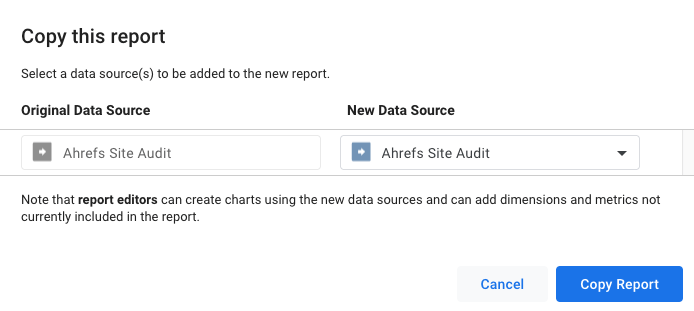
Finally, click "Copy Report" to finalize the creation. Looker Studio will keep all chart options and styling from the report template intact in the new copy, but use your new data source to retrieve information for it.
Modifying and combining template reports
Once a report is instantiated, it has no further association with the original template, and it can be customized to the full extent offered by Looker Studio.
This also means it is possible to transfer charts between reports. For example, suppose there is a Site Audit report and Site Explorer report, created from their respective templates. If a chart from the Site Audit report is copied and pasted into the Site Explorer report, Looker Studio will add the former’s underlying data source to the latter, and the pasted chart will be shown. This approach can be used to create reports that combine charts from different connector templates.