Create a data source using an Ahrefs connector
This guide shows you how to authorize an Ahrefs connector and use it to create a new data source that retrieves data from your Ahrefs account.
info
Ahrefs currently offers three connectors: "Ahrefs Site Audit", "Ahrefs Site Explorer", and “Ahrefs Rank Tracker”. In this guide, we'll focus on the first one, but the steps are the same for all three.
Step 1: Authorize the connector
Go to Looker Studio and login with your Google account. Click one of the following links to use our connectors.
- Site Audit
- Site Explorer
- Rank Tracker
- Brand Radar (soon!)
There are two authorizations to make. The left one asks your Google account to authorize Looker Studio to use the connector. The right one asks your Ahrefs account to authorize the connector to use your Ahrefs subscription.

You won't need to perform this action the next time you create a data source from the Ahrefs connector, as long as your credentials remain valid. When your Ahrefs authorization expires, re-authorize when prompted with this screen to continue using the data source.
info
If you receive the message "Bad Request: Error 400" during authorization using Google Chrome, follow this troubleshooting guide.
Step 2: Configure the data source
Once you complete both authorizations, we’re ready to configure the data source. For more information on each parameter, please refer to each tool connector's configuration reference.
- Site Audit configuration
- Site Explorer configuration
- Rank Tracker configuration
- Brand Radar configuration
To get started quickly, we recommend creating a report from the ready-made template that we provide together with each connector.
info
If you're using our templates...
For full compatibility with our templates, your data source needs some additional configuration. Please follow the steps in section “Data source configuration” in the report templates reference.
Step 3: Connect
To complete the setup, click the blue "Connect" button at the top right. You will see a schema definition for your configured data source.
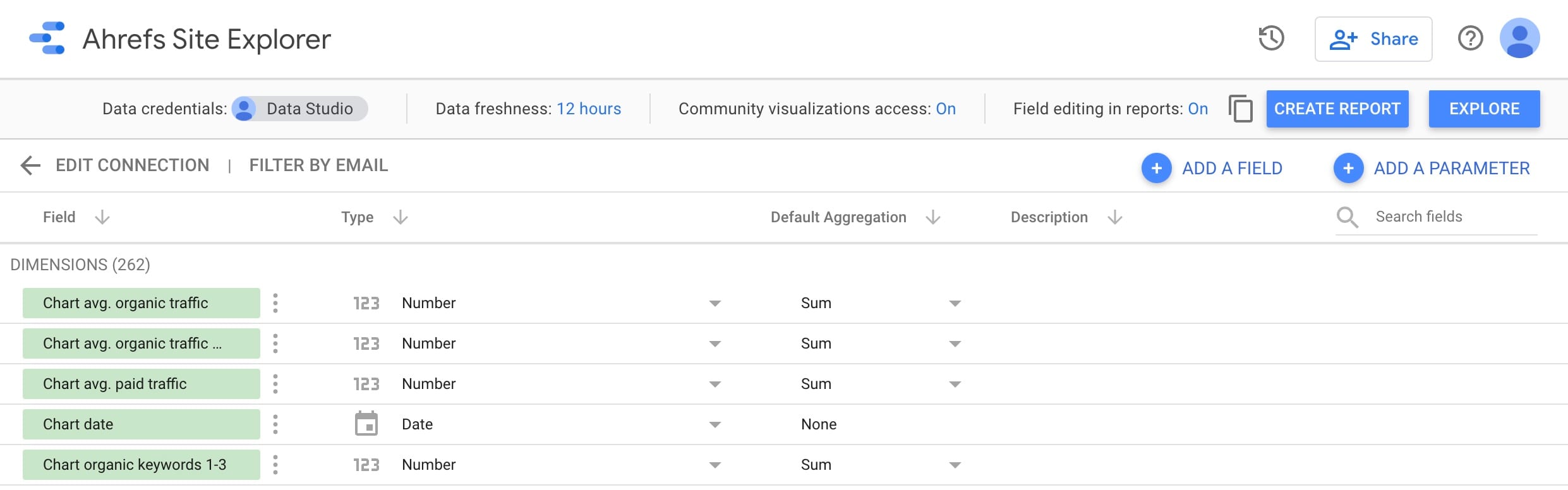
You've successfully created a new data source! To get started, click on "Create Report". If you selected the "Use report template for new reports” option, you should see a fully featured report based on your Ahrefs data. Otherwise, you can add a new chart to your blank report, and select some fields to display.
If you see errors such as “Unknown data source” and “System error” when the report loads for the first time, try refreshing the page.
info
Ready to dive deeper? Navigate via the sidebar to continue reading about using our connectors.