Reauthorize the Ahrefs connector
Follow these steps if you revoked access to an Ahrefs Looker Studio connector from your account settings before, and now want to use the connector again.
Step 1: Go to the data source creation screen
Since Looker Studio still stores the invalid authorization token, you will first need to revoke access to it from the Looker Studio side as well.
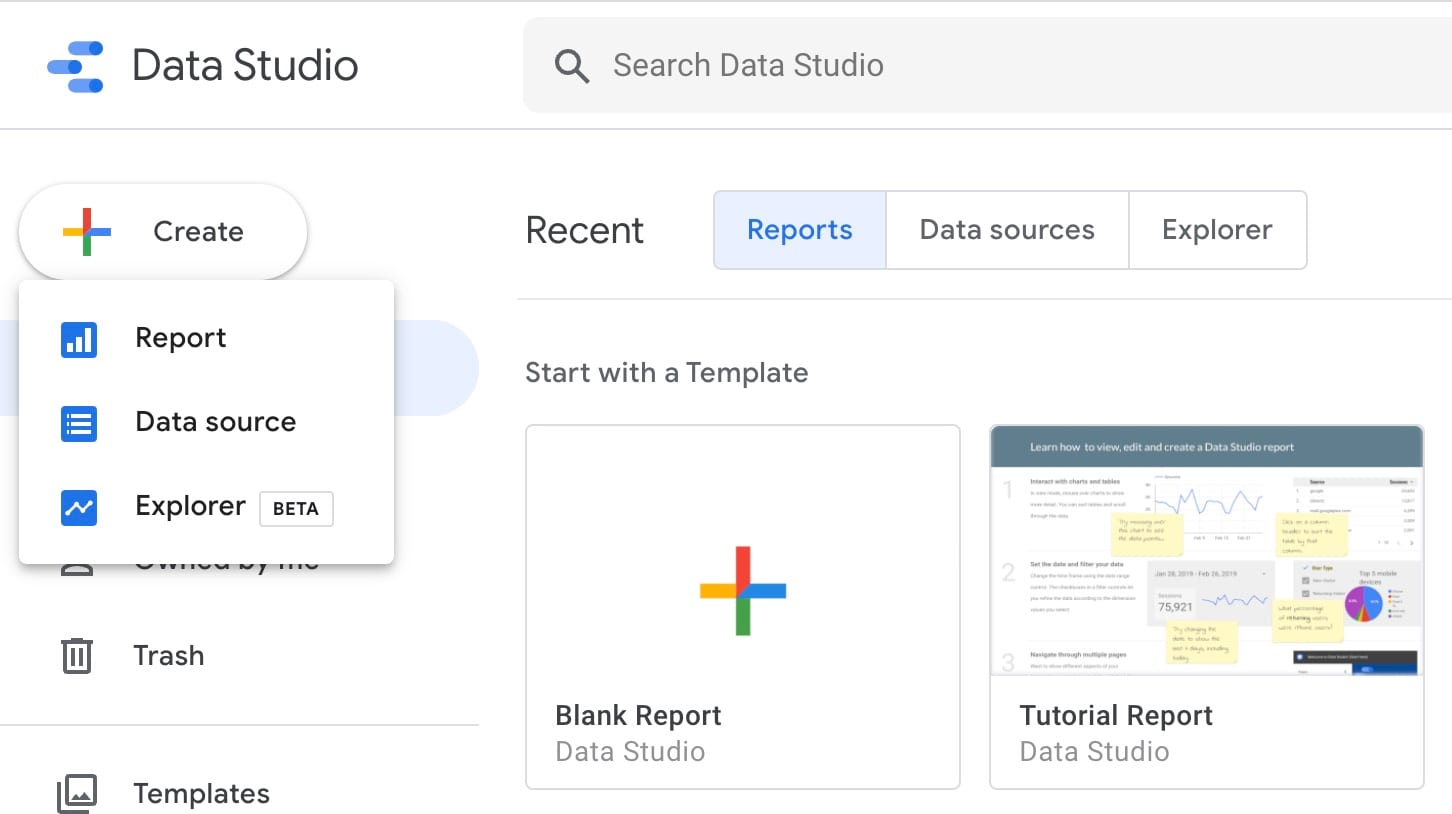
To do so, first navigate to the data source creation screen, by selecting "Create" > "Data source" from the homepage sidebar.
Step 2: Revoke access
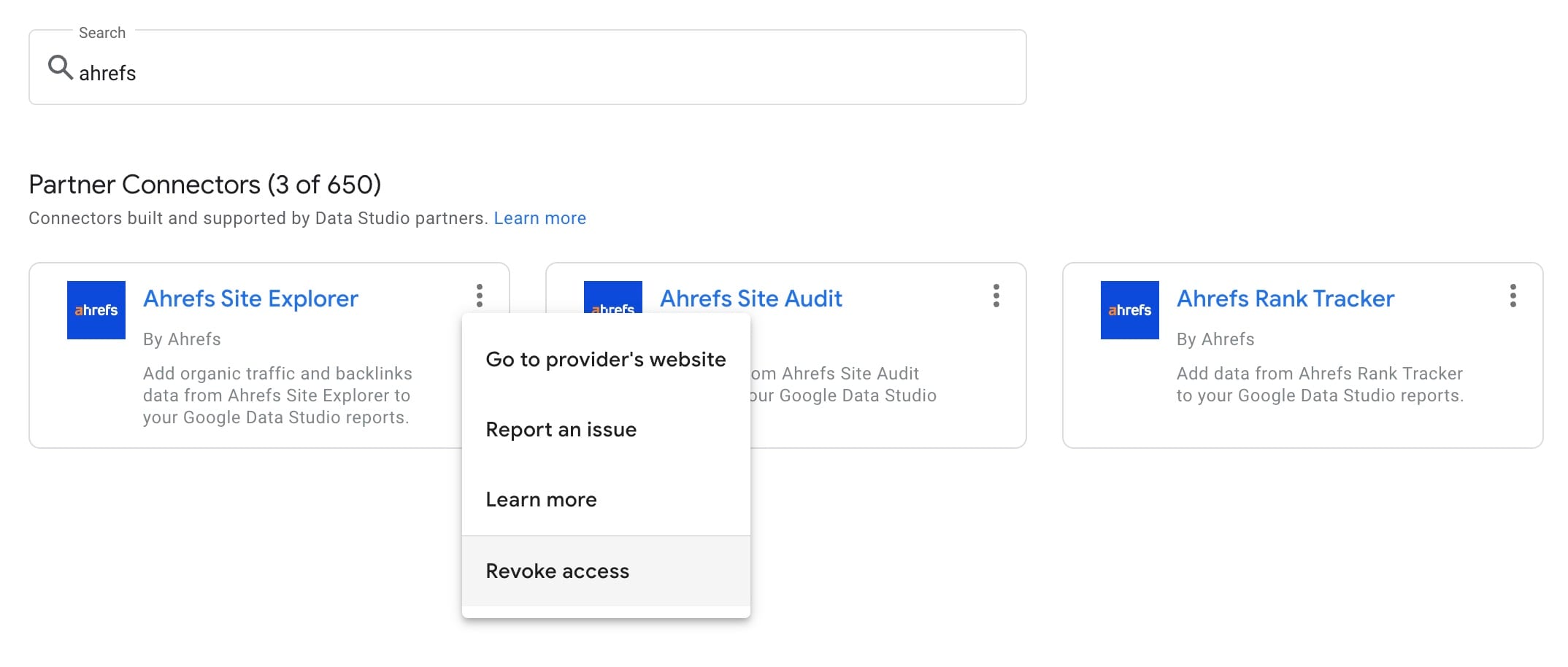
Then, click the menu toggle next to the Ahrefs connector, and choose "Revoke access".
Step 3: Reauthorize
Reload the page, and click the Ahrefs connector tile. It should prompt you with an authorization screen to re-enter your credentials.
Troubleshooting
"Bad Request: Error 400" during authorization using Google Chrome
Users accessing Looker Studio with the Google Chrome web browser may experience this issue when authorizing Looker Studio or the connector.
The issue occurs when signed into Chrome using one Google account, while using a different Google account to access Looker Studio.
Problem
A popup window appears during authorization. After completing the prompts in the window, it shows a blank page with the message "Bad Request: Error 400".
Steps to take
Currently, the only known solution is to avoid using different Google accounts for Chrome and Looker Studio.
This can be achieved in one of the following ways:
- Access Looker Studio with the same Google account used to sign into Chrome.
- Create a new Chrome profile, and sign in with the Google account intended to be used with Looker Studio.
- Temporarily access Looker Studio in an incognito window only to perform the authorization.