AWS Application Load Balancer
An Application Load Balancer (ALB) can deliver its access logs to an Amazon Data Firehose stream, and Firehose can forward them to Ahrefs over HTTPS. You create the stream and enable the log delivery in your own AWS account, from the AWS console; Ahrefs never needs access to it.
Use this guide when the ALB receives traffic from the internet directly. If Amazon CloudFront sits in front of the load balancer, the ALB only sees CloudFront's addresses, not the bots'; use the Amazon CloudFront guide instead.
Prerequisites
- An Application Load Balancer serving the domain of your Ahrefs project.
- Permissions in that AWS account to create a Firehose stream, an S3 bucket and an IAM role, and to edit the load balancer's integrations.
- The Firehose stream must be in the same region as the load balancer.
Step 1 — Get your endpoint URL and access key
- In Ahrefs, go to Project Settings → Bot Analytics for your project.
- Select AWS Application Load Balancer.
- Copy the HTTP endpoint URL and the access key shown on the page. The access key identifies your project; treat it like a password.
The endpoint URL is the same for everyone:
https://analytics.ahrefs.com/api/aws_alb/logs
Step 2 — Create the Firehose stream
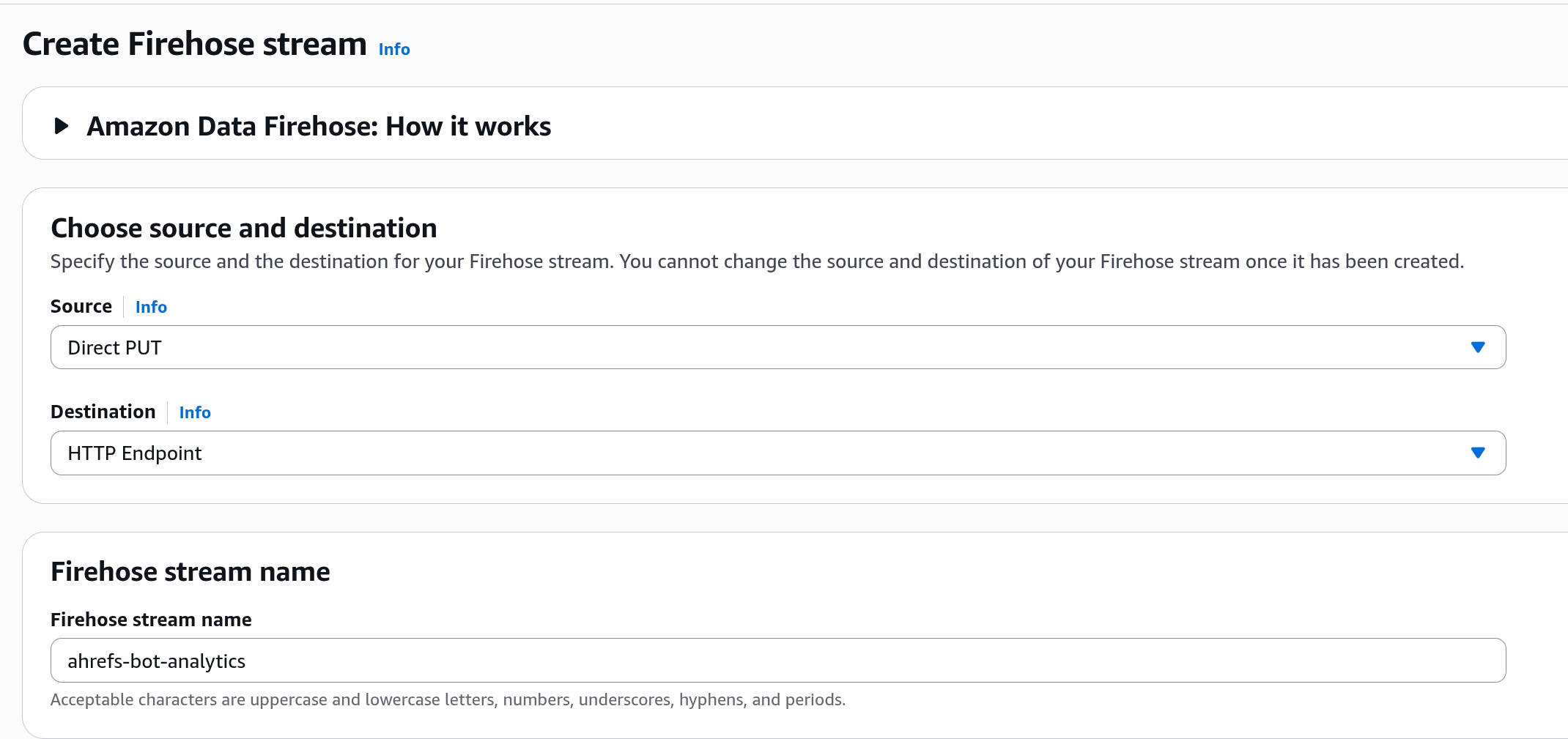
In the AWS console, switch to the load balancer's region, open Amazon Data Firehose and click Create Firehose stream.
Choose source and destination
Set Source to Direct PUT and Destination to HTTP Endpoint, then give the stream a name such as ahrefs-bot-analytics. Source and destination cannot be changed after the stream is created. Leave the Transform records section as it is.
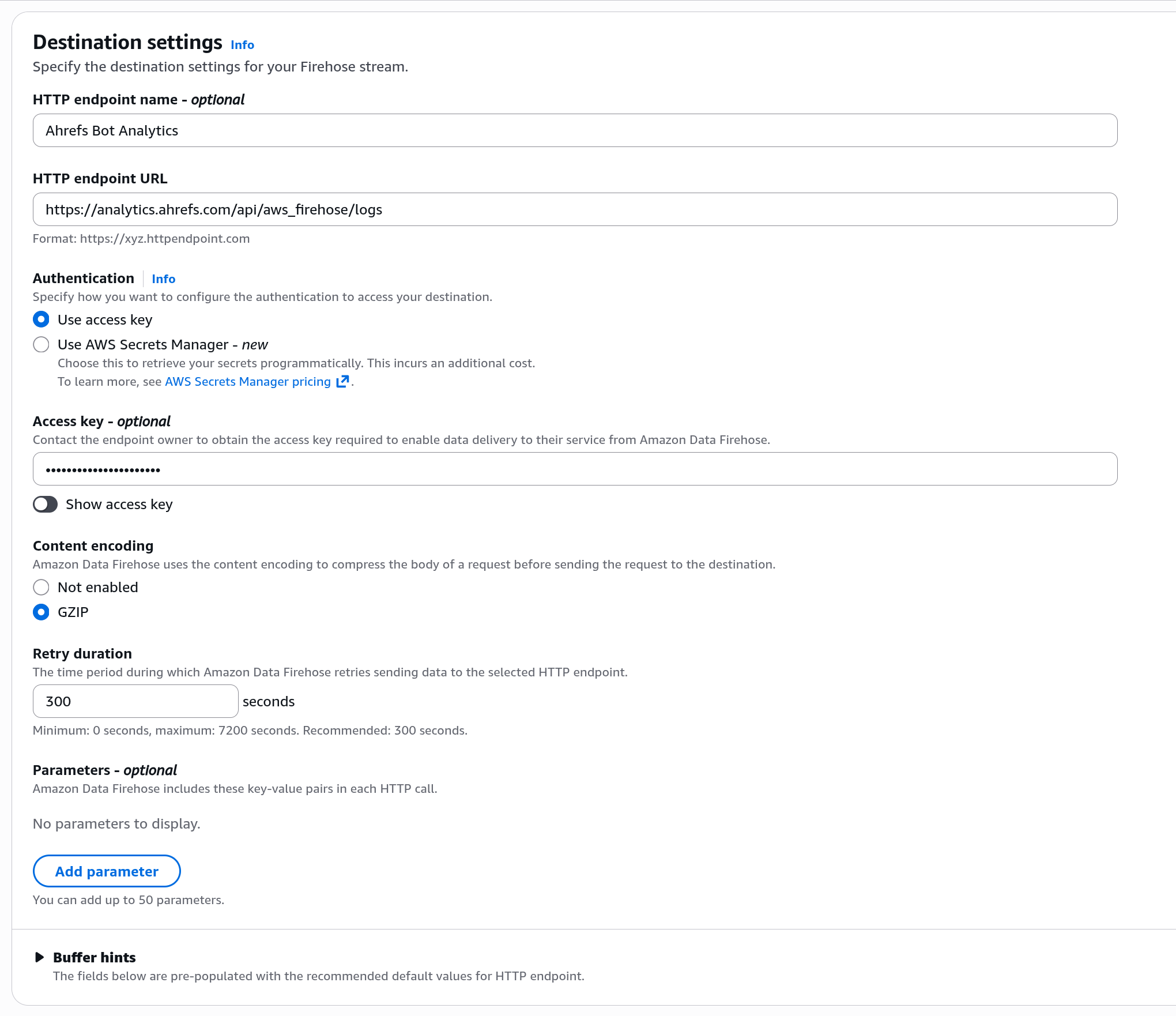
Destination settings
- HTTP endpoint name:
Ahrefs Bot Analytics - HTTP endpoint URL: the URL from Step 1
- Authentication: Use access key, and paste the access key from Step 1 into Access key
- Content encoding: GZIP
- Retry duration:
300seconds - Parameters: leave empty
- Buffer hints: keep the defaults
warning
The access key is the only thing that ties the stream to your Ahrefs project. Each Ahrefs project needs its own Firehose stream with its own access key; several load balancers serving the same project can share one stream.
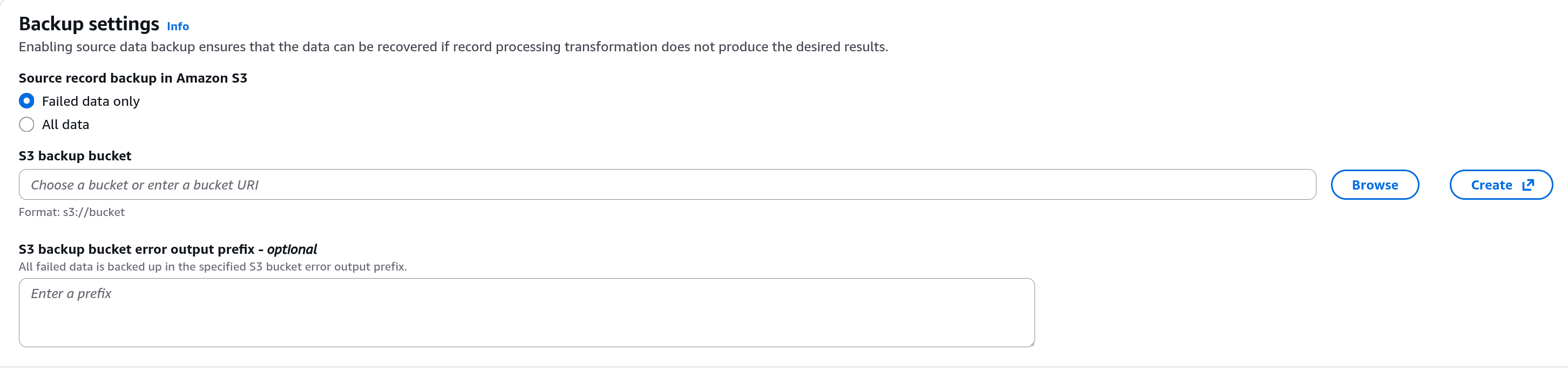
Backup settings
Under Source record backup in Amazon S3 choose Failed data only, then Browse to an existing S3 bucket or Create a new one. Firehose writes there any batch that Ahrefs could not accept, together with the reason, so this bucket is the first place to look when troubleshooting.
Advanced settings
Expand Advanced settings, set Amazon CloudWatch error logging to Enabled, and under Permissions let the console create a new IAM role. Click Create Firehose stream and wait until the stream's status is Active.
Step 3 — Send the load balancer's access logs to the stream
- In the EC2 console, open Load Balancers and select your Application Load Balancer.
- Open the Integrations tab. The access logs on the Attributes tab are the legacy S3 logs; Ahrefs cannot receive those.
- Under access logs, add a delivery with destination Amazon Data Firehose and pick your stream.
- Set Output format to JSON. Other formats are not accepted. The load balancer always sends every field, so there is nothing to select.
- Save. Accept the prompt to let AWS deliver logs to the stream.
Ahrefs reads time, request_creation_time, client_port, request_line, user_agent and elb_status_code, and keeps the timings, byte counts, trace_id, actions_executed and redirect_url as details. ALB access logs have no referrer.
Step 4 — Verify
The load balancer delivers access logs within a few minutes, and Firehose forwards each batch within its buffer interval.
- In the Firehose console, the stream's Monitoring tab shows
IncomingRecordsonce the load balancer starts delivering, andDeliveryToHttpEndpoint.Successonce Ahrefs accepts the batches. - In Ahrefs, the Bot Analytics report fills in as bots visit your site.
Requests the load balancer answers itself, such as redirects and fixed responses, are logged and counted too.
Troubleshooting
If deliveries fail, Firehose retries for the retry duration and then writes the batch to your backup bucket under the http-endpoint-failed/ prefix, with the error message returned by Ahrefs. The same message appears in the stream's Destination error logs tab.
| Error message | Cause |
|---|---|
missing authentication header | The access key field in the Firehose destination is empty. |
invalid authentication | The access key does not match an Ahrefs project. Copy it again from Step 1. |
not a JSON object: configure the load balancer's access log delivery with output format JSON | The delivery's output format is plain text. Recreate it with output format JSON. |
Response … must contain a 'content-type: application/json' header … 404 | The endpoint URL is misspelled. Compare it with the URL in Step 1. |
If IncomingRecords stays at zero, check that the delivery is on the Integrations tab, that the stream is in the load balancer's region with source Direct PUT, and that the load balancer receives traffic.
Disabling
- On the load balancer's Integrations tab, remove the access log delivery to the Firehose stream.
- Delete the Firehose stream, and the backup bucket if you no longer need it.
- In Ahrefs, disable AWS Application Load Balancer in Project Settings → Bot Analytics.