Amazon CloudFront
Amazon CloudFront peut transmettre ses journaux d’accès vers un flux Amazon Data Firehose, et Firehose peut ensuite les transférer à Ahrefs via HTTPS. Vous créez le flux et activez la livraison des journaux dans votre propre compte AWS, depuis la console AWS ; Ahrefs n’a jamais besoin d’y accéder.
Prérequis
- Une distribution CloudFront servant le domaine de votre projet Ahrefs.
- Des autorisations, dans ce compte AWS, pour créer un flux Firehose, un compartiment S3 et un rôle IAM, et pour modifier les paramètres de journalisation de la distribution.
- Le flux Firehose doit être créé dans la région US East (N. Virginia)
us-east-1. CloudFront ne transmet les journaux standard aux flux Firehose que dans cette région, quelle que soit la région où se trouve votre origine.
Étape 1 — Récupérez l’URL du point de terminaison et la clé d’accès
- Dans Ahrefs, accédez à Paramètres du projet → Bot Analytics pour votre projet.
- Sélectionnez Amazon CloudFront.
- Copiez l’URL du point de terminaison HTTP et la clé d’accès affichées sur la page. La clé d’accès identifie votre projet ; traitez-la comme un mot de passe.
L’URL du point de terminaison est la même pour tout le monde :
https://analytics.ahrefs.com/api/aws_cloudfront/logs
Étape 2 — Créez le flux Firehose
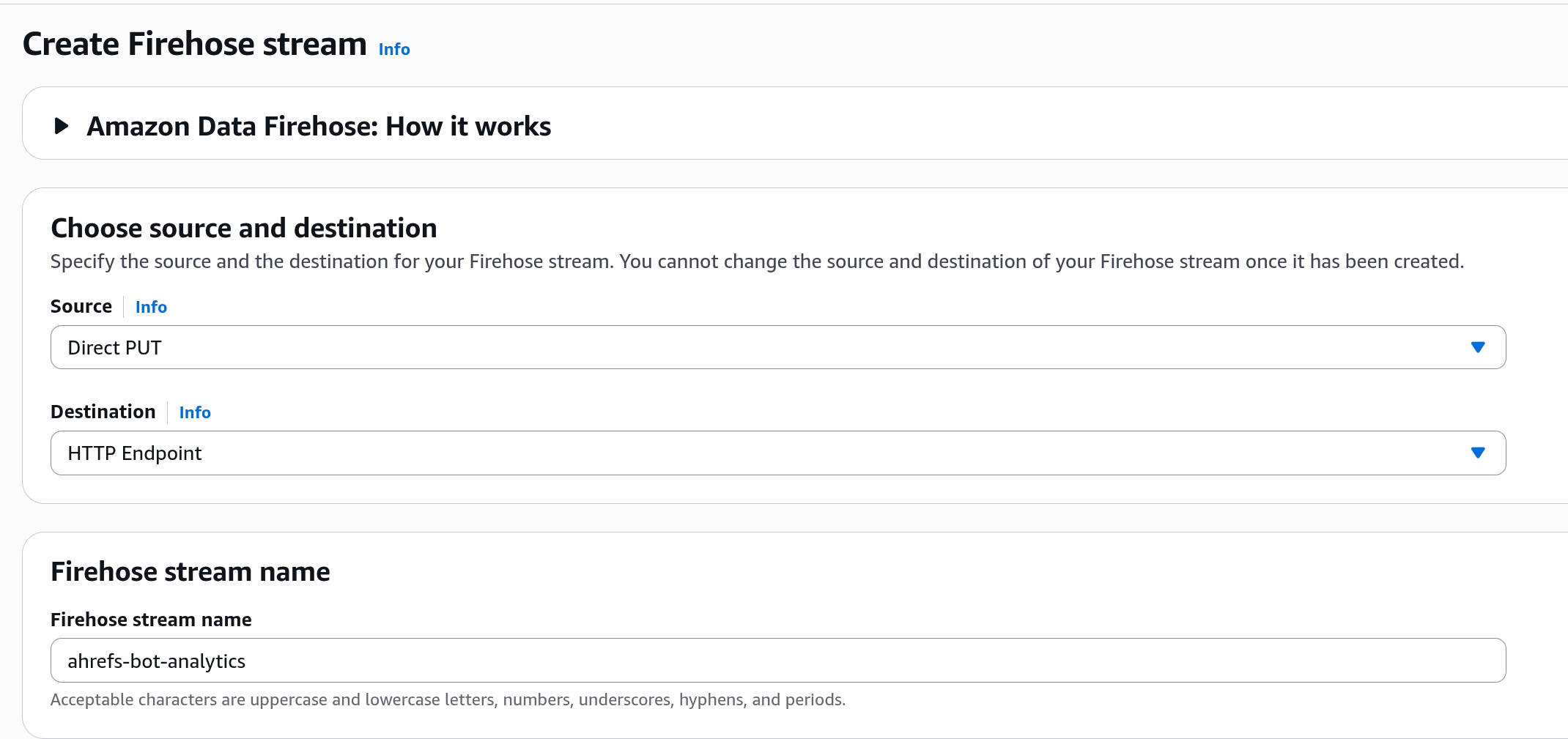
Dans la console AWS, basculez vers la région US East (N. Virginia), ouvrez Amazon Data Firehose et cliquez sur Créer un flux Firehose.
Choisissez la source et la destination
Définissez Source sur PUT direct et Destination sur Point de terminaison HTTP, puis donnez un nom au flux, par exemple ahrefs-bot-analytics. La source et la destination ne peuvent pas être modifiées une fois le flux créé. Laissez la section Transformer les enregistrements telle quelle.
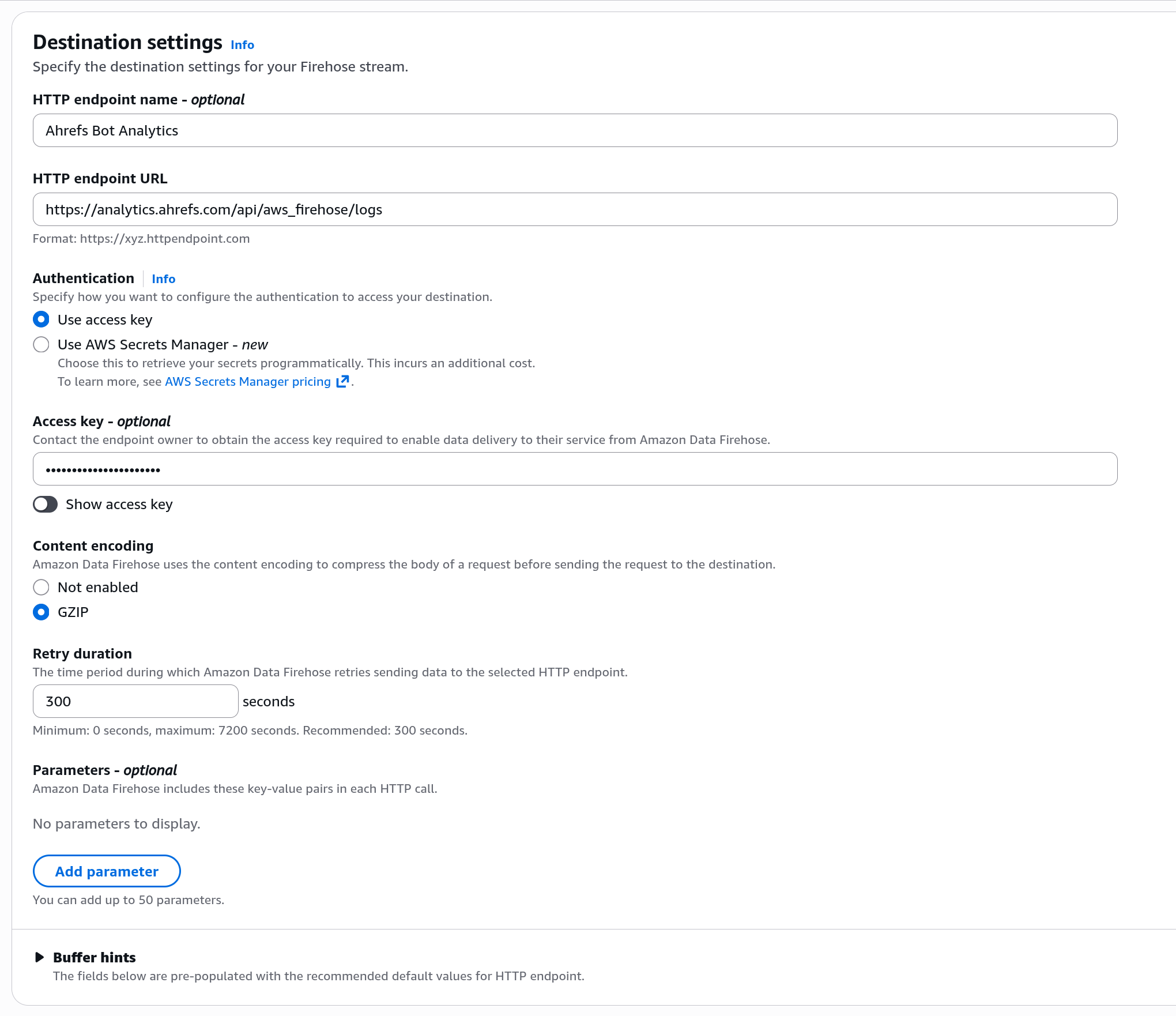
Paramètres de destination
- Nom du point de terminaison HTTP :
Ahrefs Bot Analytics - URL du point de terminaison HTTP : l’URL de l’étape 1
- Authentification : Utiliser la clé d’accès, puis collez la clé d’accès de l’étape 1 dans Clé d’accès
- Encodage du contenu : GZIP
- Durée des nouvelles tentatives :
300secondes - Paramètres : laissez-les vides
- Conseils de mise en mémoire tampon : conservez les valeurs par défaut
warning
La clé d’accès est la seule chose qui lie le flux à votre projet Ahrefs. Chaque projet Ahrefs a besoin de son propre flux Firehose avec sa propre clé d’accès ; plusieurs distributions servant le même projet peuvent partager un flux.
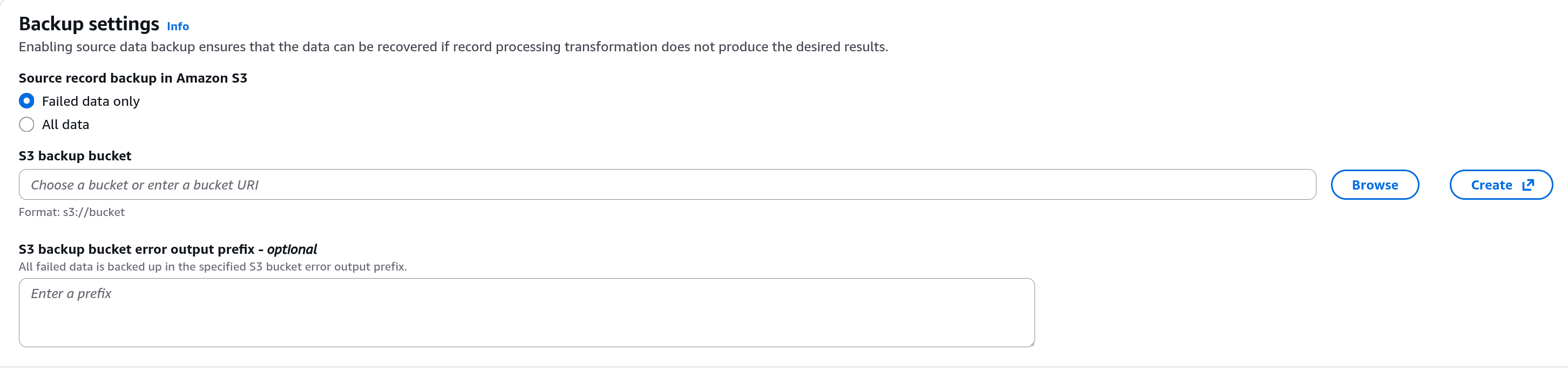
Paramètres de sauvegarde
Sous Sauvegarde des enregistrements source dans Amazon S3, choisissez Données en échec uniquement, puis cliquez sur Parcourir pour sélectionner un compartiment S3 existant, ou sur Créer pour en créer un nouveau. Firehose y écrit tous les lots qu’Ahrefs n’a pas pu accepter, avec la raison ; ce compartiment est donc le premier endroit à vérifier lors du dépannage.
Paramètres avancés
Développez Paramètres Advanced, définissez Journalisation des erreurs Amazon CloudWatch sur Activé, puis sous Autorisations, laissez la console créer un nouveau rôle IAM. Cliquez sur Créer un flux Firehose et attendez que le statut du flux passe à Actif.
Étape 3 — Envoyez les journaux CloudFront vers le flux
- Dans la console CloudFront, ouvrez Distributions et sélectionnez votre distribution.
- Dans l’onglet Journalisation, sous Destinations des journaux standard, cliquez sur Ajouter.
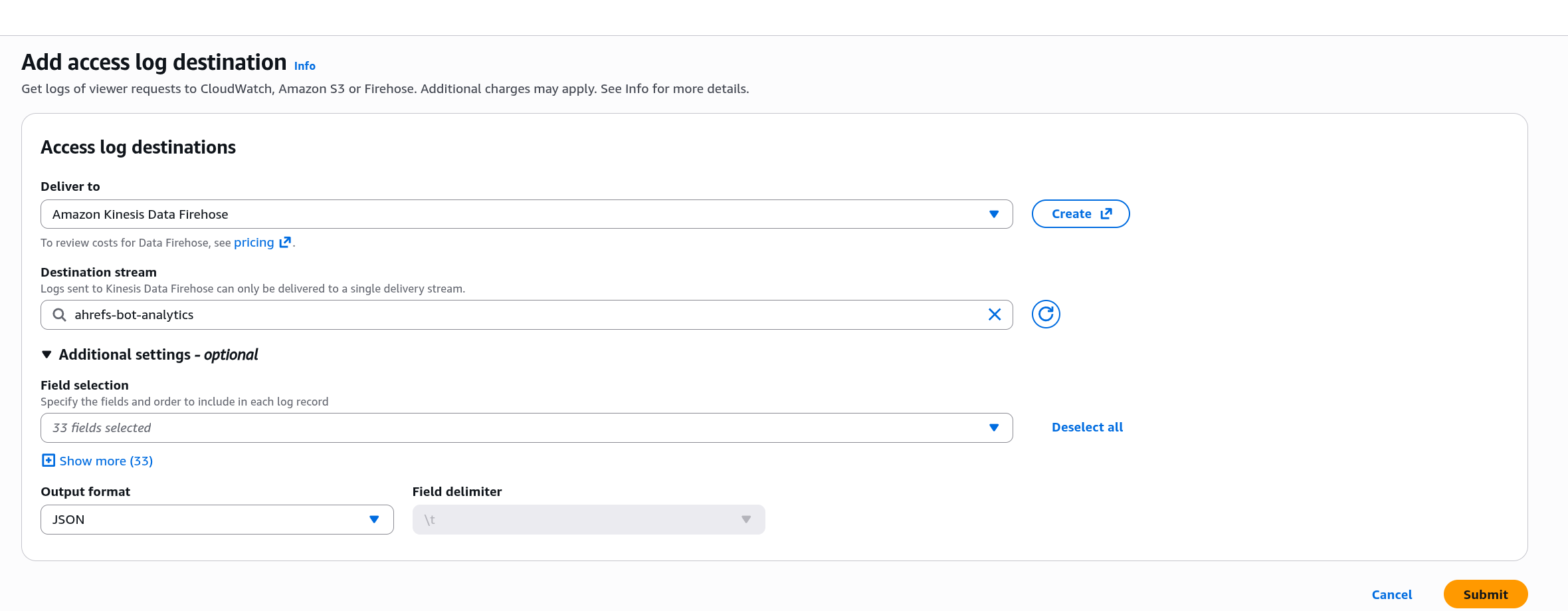
- Sur la page Ajouter une destination de journaux d’accès, définissez Envoyer vers sur Amazon Kinesis Data Firehose et sélectionnez votre flux sous Flux de destination.
- Développez Paramètres supplémentaires :
- Sélection des champs : sélectionnez les champs listés sous Champs des journaux. Vous pouvez aussi laisser les 33 champs sélectionnés.
- Format de sortie : JSON. Les autres formats ne sont pas acceptés.
- Cliquez sur Envoyer. CloudFront applique les modifications de journalisation en quelques minutes.
Champs des journaux
Ahrefs a besoin d’un horodatage, de c-ip, x-host-header, cs-uri-stem et cs(User-Agent). La sélection recommandée est :
timestamp(ms) date time c-ip x-forwarded-for cs-method x-host-header cs-protocol
cs-protocol-version cs-uri-stem cs-uri-query cs(User-Agent) cs(Referer) sc-status sc-bytes
sc-content-type time-to-first-byte time-taken x-edge-result-type x-edge-request-id
x-edge-location c-country asn
timestamp(ms), c-country et asn se trouvent dans le sous-ensemble en temps réel du sélecteur de champs. Ils sont facultatifs : sans timestamp(ms), Ahrefs utilise date et time, avec une précision d’une seconde.
Étape 4 — Vérifier
CloudFront transmet les journaux standard par lots, généralement dans l’heure qui suit les requêtes et, de manière fiable, environ quatre heures après l’activation de la journalisation. Firehose transfère ensuite chaque lot dans son intervalle de mise en mémoire tampon.
- Dans la console Firehose, l’onglet Surveillance du flux affiche
IncomingRecordsdès que CloudFront commence à livrer les journaux, puisDeliveryToHttpEndpoint.Successdès qu’Ahrefs accepte les lots. - Dans Ahrefs, le rapport Bot Analytics se remplit à mesure que les bots visitent votre site.
Dépannage
En cas d’échec de livraison, Firehose réessaie pendant la durée de réessai, puis écrit le lot dans votre bucket de sauvegarde sous le préfixe http-endpoint-failed/, avec le message d’erreur renvoyé par Ahrefs. Le même message apparaît dans l’onglet Journaux d’erreurs de destination du flux.
| Message d’erreur | Cause |
|---|---|
missing authentication header | Le champ de la clé d’accès dans la destination Firehose est vide. |
invalid authentication | La clé d’accès ne correspond pas à un projet Ahrefs. Copiez-la à nouveau depuis l’étape 1. |
records are not JSON: configure CloudFront standard logging (v2) with output format JSON | Le format de sortie de la livraison n’est pas JSON, ou le flux reçoit les journaux en temps réel de CloudFront. Seuls les journaux standard au format JSON sont pris en charge. |
Réponse … doit contenir un en-tête « content-type: application/json » … 404 | L’URL du point de terminaison contient une faute de frappe. Comparez-la avec l’URL de l’étape 1. |
Désactivation
- Dans la console CloudFront, dans l’onglet Journalisation de la distribution, sélectionnez la destination Firehose et supprimez-la. Cela arrête la livraison des journaux.
- Supprimez le flux Firehose, ainsi que le bucket de sauvegarde si vous n’en avez plus besoin.
- Dans Ahrefs, désactivez Amazon CloudFront dans Paramètres du projet → Bot Analytics.
La suppression de la destination conserve la source de livraison de la distribution dans CloudWatch Logs. C’est sans conséquence, et elle est réutilisée si vous réactivez la journalisation.
info
Les journaux en temps réel de CloudFront (livrés via Kinesis Data Streams) ne sont pas pris en charge. Utilisez la journalisation standard (v2) avec une sortie JSON comme décrit ci-dessus.